Open the storage settings on a Mac and you will usually see a grey part of the bar named System Data. On some Macs it is a few gigabytes. On others it is the largest thing on the disk, and macOS offers no button to see what is in it.
What System Data holds
System Data is where macOS counts everything that is not an app, a document, a photo, mail or one of the other named categories. Apple describes it as files the system uses to run. In practice that means:
- Caches. Copies of things apps have already downloaded or worked out, kept so they open faster next time.
- Logs. Records apps and macOS write as they run, mostly useful to whoever is fixing a fault.
- Local Time Machine snapshots. If Time Machine is on, your Mac keeps recent snapshots on its own disk until the backup drive is back.
- Temporary and working files. Swap space for memory, the file that holds what is in memory while the Mac sleeps, and files apps leave while they work.
- Support files. Fonts, plug-ins and the data apps keep in your Library folder.
Is it safe to remove?
Most of it is either rebuilt by macOS on its own or cleared when it is no longer needed. Some of it is not yours to delete at all: macOS protects its own files. The parts that grow without stopping are usually caches, snapshots and old device backups, and each of those can be looked at and removed with care.
What is not safe is deleting folders by guesswork. A cache that belongs to an app that is open can come straight back, and a folder with the wrong name can hold an app's settings.
How big is normal?
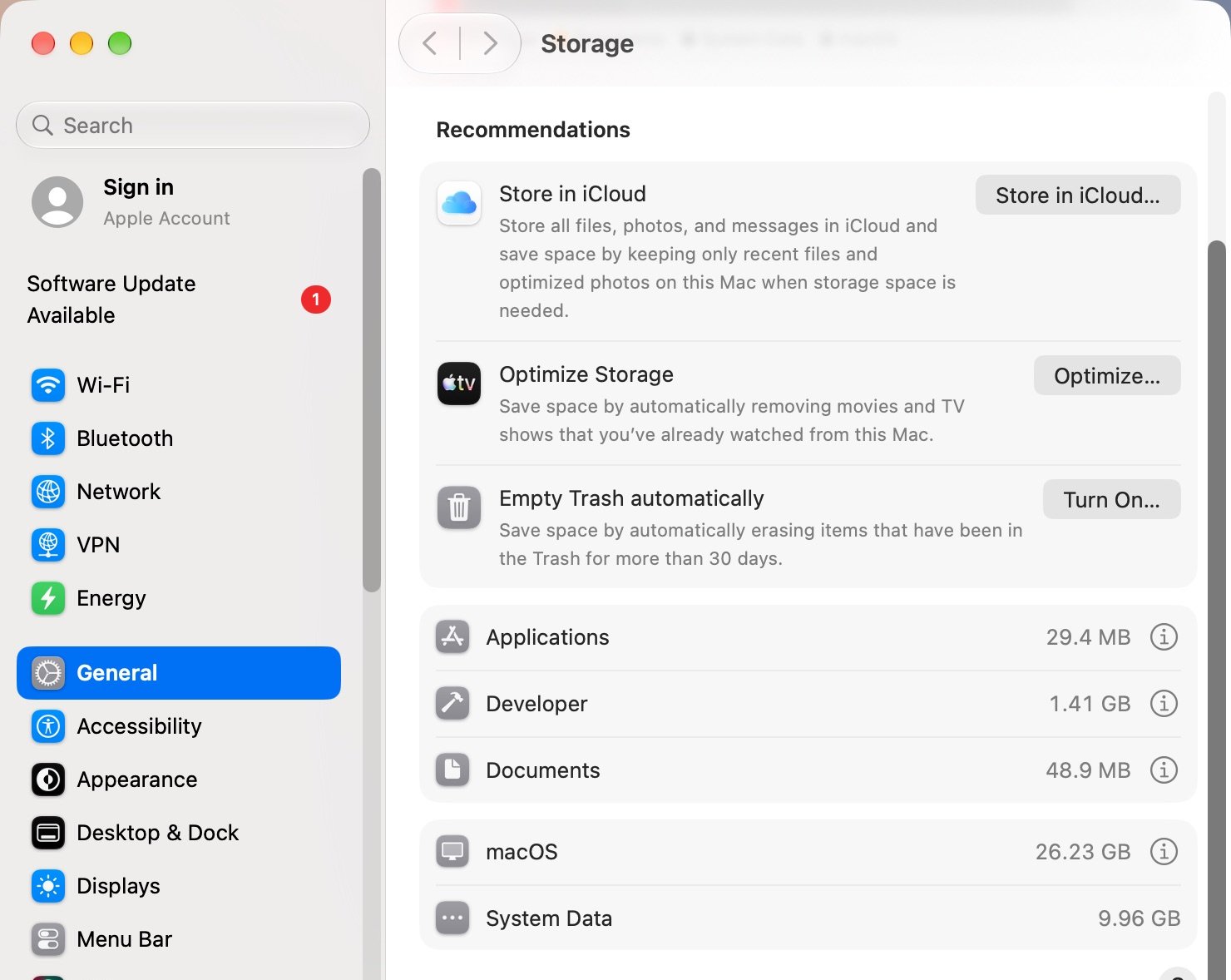
On our test Mac, a clean install of macOS 27 with almost nothing else on it, System Data was 9.9 GB, beside 26.2 GB for macOS itself. A Mac that has been used for a year will show more. Tens of gigabytes is common; a figure that keeps growing from week to week is the sign to look closer.
Why the figure moves
System Data changes from hour to hour. Snapshots are made and thinned, caches fill and empty, and a restart clears temporary files. If you check the figure, check it twice, a few hours apart, before you decide anything.
The way your Mac already does it
Open System Settings, then General, then Storage.
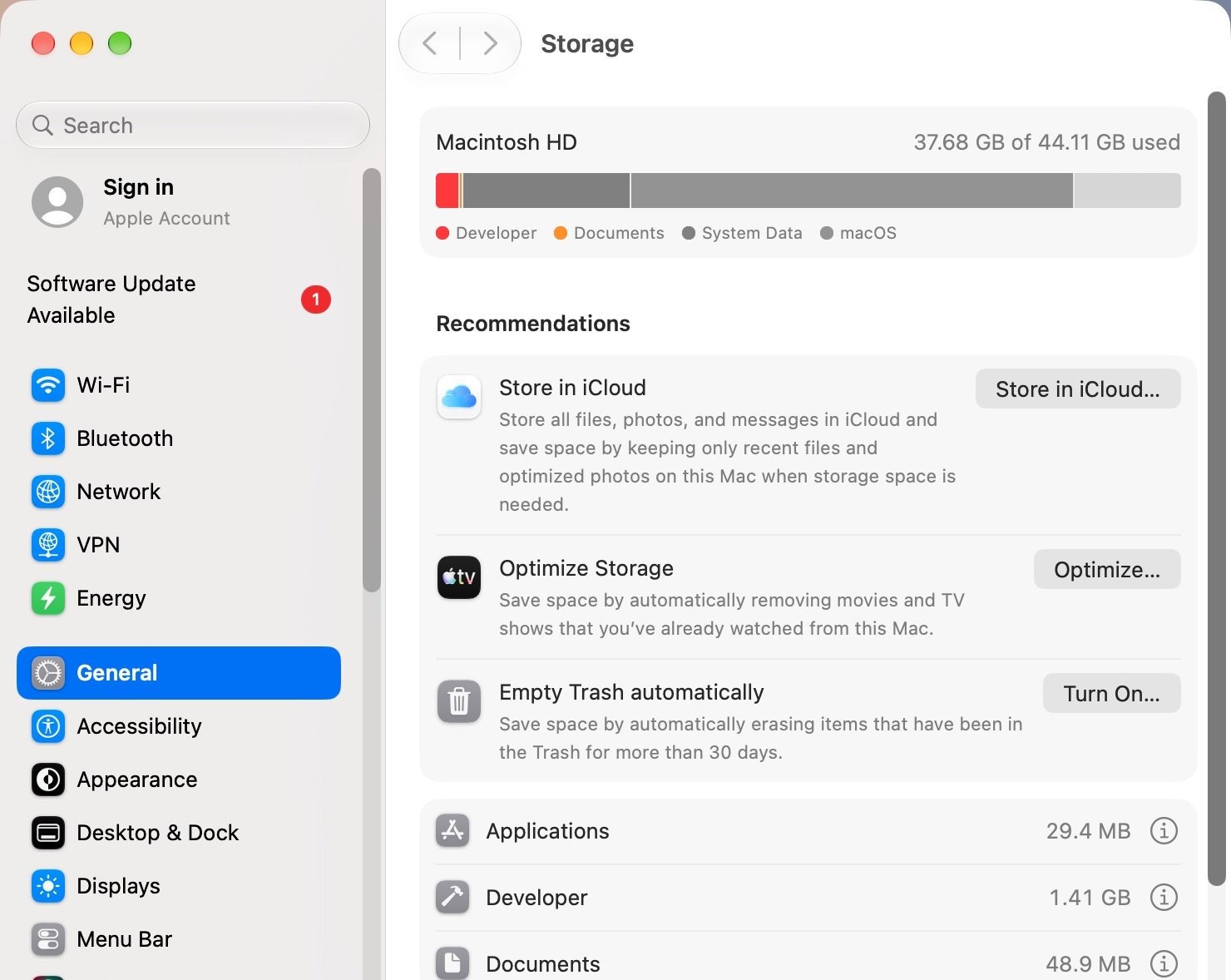
Wait for the bar at the top to finish calculating, then hold the pointer over the grey part named System Data.
Scroll the list; System Data has no button to look inside, unlike Applications or Documents.
Where it runs out
macOS shows the total but not what is in it, so you cannot tell what is safe to remove.
With MacCleanX
Coming
Open MacCleanX and run a scan; it lists what makes up the space, by kind, before anything is moved.
MacCleanX is coming.
MacCleanX is not available to download yet. Leave your email and we will write when it is.