A two-minute video from an iPhone can be several hundred megabytes, too large for most email and some upload forms. Your Mac can make it smaller without any other app, and it helps to know what you are trading when you do.
What makes a video large
Three things set the size: how many pixels each frame has (4K, 1080p, 720p), how long it runs, and how much detail the encoder keeps per second. Making a 4K video 1080p usually cuts it to about a quarter, and on a laptop or phone screen most people cannot see the difference.
Which way to use
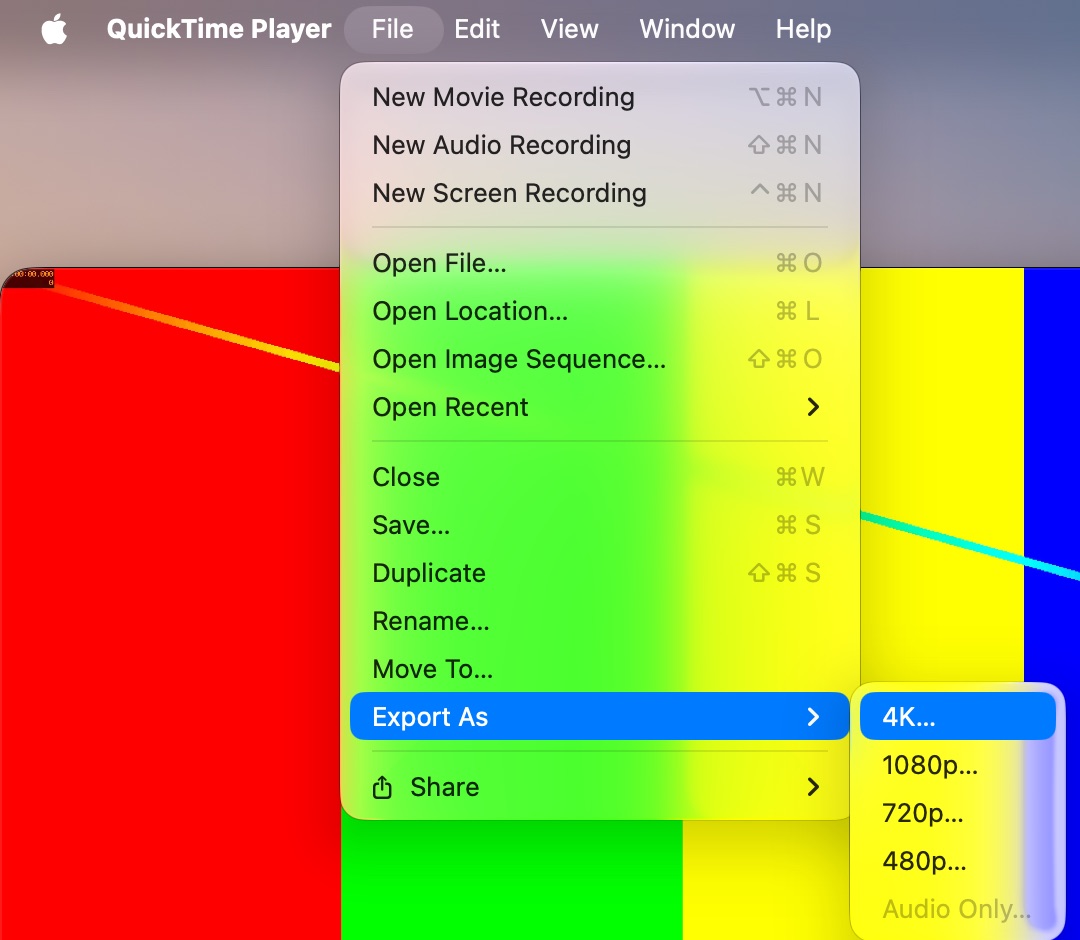
QuickTime Player is the simplest: open the video and export it at a smaller size. On macOS 27 its Export As menu offers 4K, 1080p, 720p and 480p, plus audio only. Pick the first size below the one your video was filmed at: a 4K video exported at 1080p is the biggest saving for the smallest loss.
The export runs while you carry on working, and the original file is not touched: QuickTime asks for a new name and place.
Neither lets you ask for a size in megabytes, so if you need to stay under a limit, export, check the size in Finder, and try a smaller setting if it is still too big.
The way your Mac already does it
Open the video in QuickTime Player, choose File, Export As, and pick a smaller size such as 1080p or 720p.
Where it runs out
You choose a size, not a target, and it often takes two or three tries to get under an email limit.
With MacShelf
Coming
Drop the video on MacShelf; it makes the file smaller, shows the size before and after, and keeps the original as a backup you can restore.
MacShelf is coming.
MacShelf is not available to download yet. Leave your email and we will write when it is.