A PDF made from scans or photos can easily be tens of megabytes. Preview, which comes with every Mac, has a filter to make it smaller, and it works well on some files and badly on others.
What makes a PDF large
Text takes almost no space. The size comes from images: scanned pages, photos and screenshots placed in the document. Making a PDF smaller means making those images smaller.
What shrinking does to a PDF
Every option that makes a PDF smaller works the same way underneath: it shrinks and recompresses the pictures inside it, all by the same amount. On a document full of large photos that is a big saving. On a scanned letter it can make the text harder to read, because the text is a picture too.
New on macOS 27: more export options
On macOS 27, Preview's Export sheet for a PDF has four tick boxes under the Quartz Filter menu: Create PDF/A, Create Linearized PDF, Optimize images for screen, and Save images as JPEG. The last two are the ones that make a file smaller: they shrink and recompress the pictures inside it, which is where the size lives.
Try them in this order. Export once with Optimize images for screen and look at the size. If it is still too big, export again with Save images as JPEG as well. The Quartz Filter menu above them is the older route, and the bluntest.
Always keep the original. Export under a new name, open the copy, and zoom in on a page before you send it.
The way your Mac already does it
Open the PDF in Preview and choose File, Export.
Tick Optimize images for screen, choose a new name, and click Save.
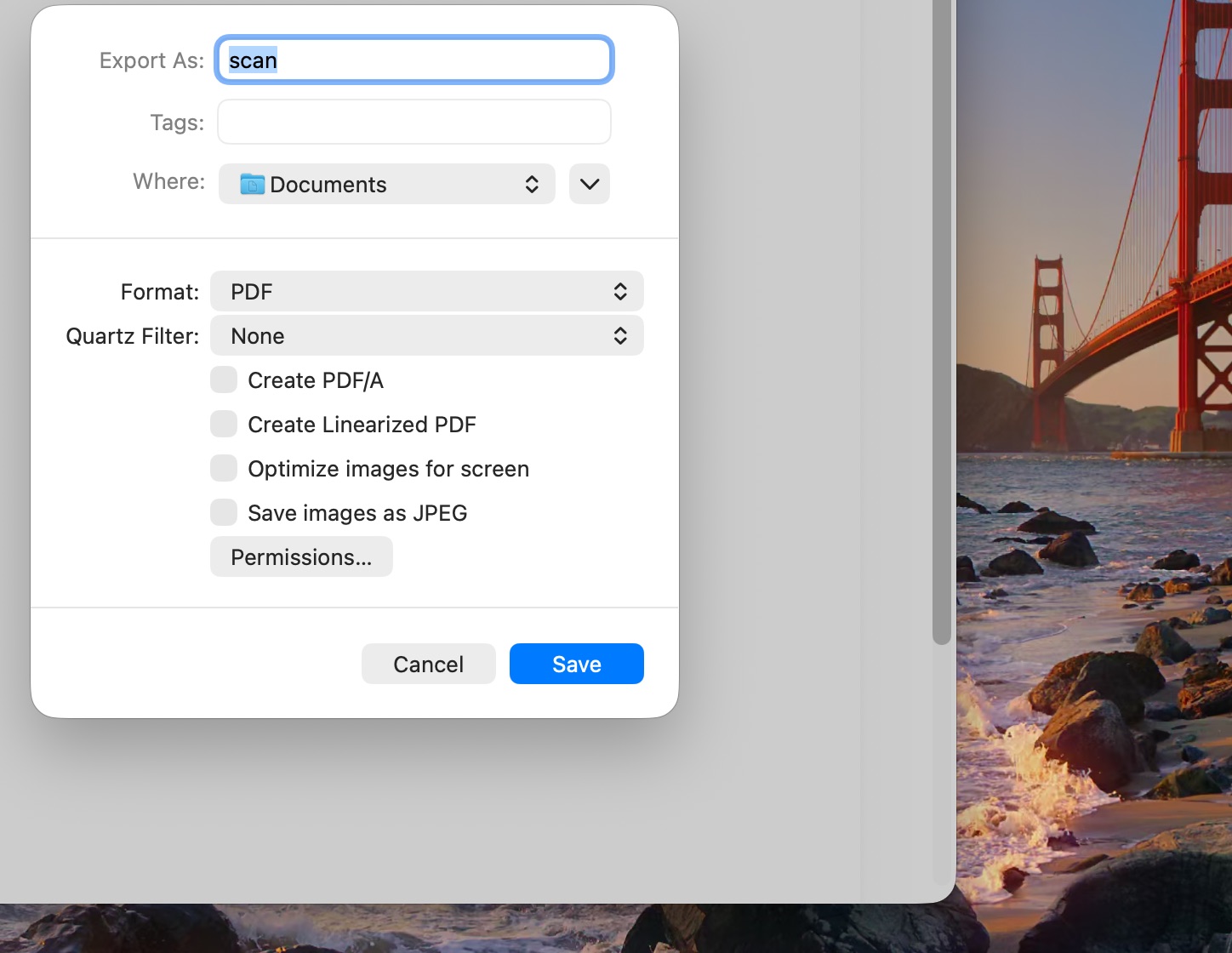
If the copy is still too big, export again with Save images as JPEG ticked as well.
Where it runs out
Both options shrink every picture by the same amount; photos can come out soft, and you cannot ask for a size in megabytes.
With MacShelf
Coming
Drop the PDF on MacShelf; it makes the file smaller, shows the size before and after, and keeps the original as a backup you can restore.
MacShelf is coming.
MacShelf is not available to download yet. Leave your email and we will write when it is.